Submission handling
This guide is for adding and updating mods to the ModTools Database repository on GitHub.
Important
This should only be used AFTER THE SUBMISSION HAS BEEN DEEMED AS ACCEPTED.
A mod should not be added to the ModTools Database until it has passed the moderation process.
Requirements
Download and install Git to your machine
Download the ModTools-Database and enter it
Open your system’s terminal
Enter the directory you want to download the repository to
Download the files:
git clone --recurse-submodules https://github.com/Legacy-Edition-Minigames/ModTools-Database.git
Danger
This will download ALL the mods inside the ModTools Database, make sure you have the storage space for this.
Enter the new folder:
cd ModTools-Database
Add a new submission
Note
You are expected to have a terminal window open inside the ModTools-Database folder before continuing.
Make sure the repository is up to date:
git checkout mainAdd the repository
Enter the correct category:
cd Featuredorcd VerifiedAdd the repository as a submodule:
git submodule add https://github.com/Username/repository-nameEnter the submodule:
cd repository-name
Set it to the correct version
Check the releases page of the repository, and find the latest stable version of the mod
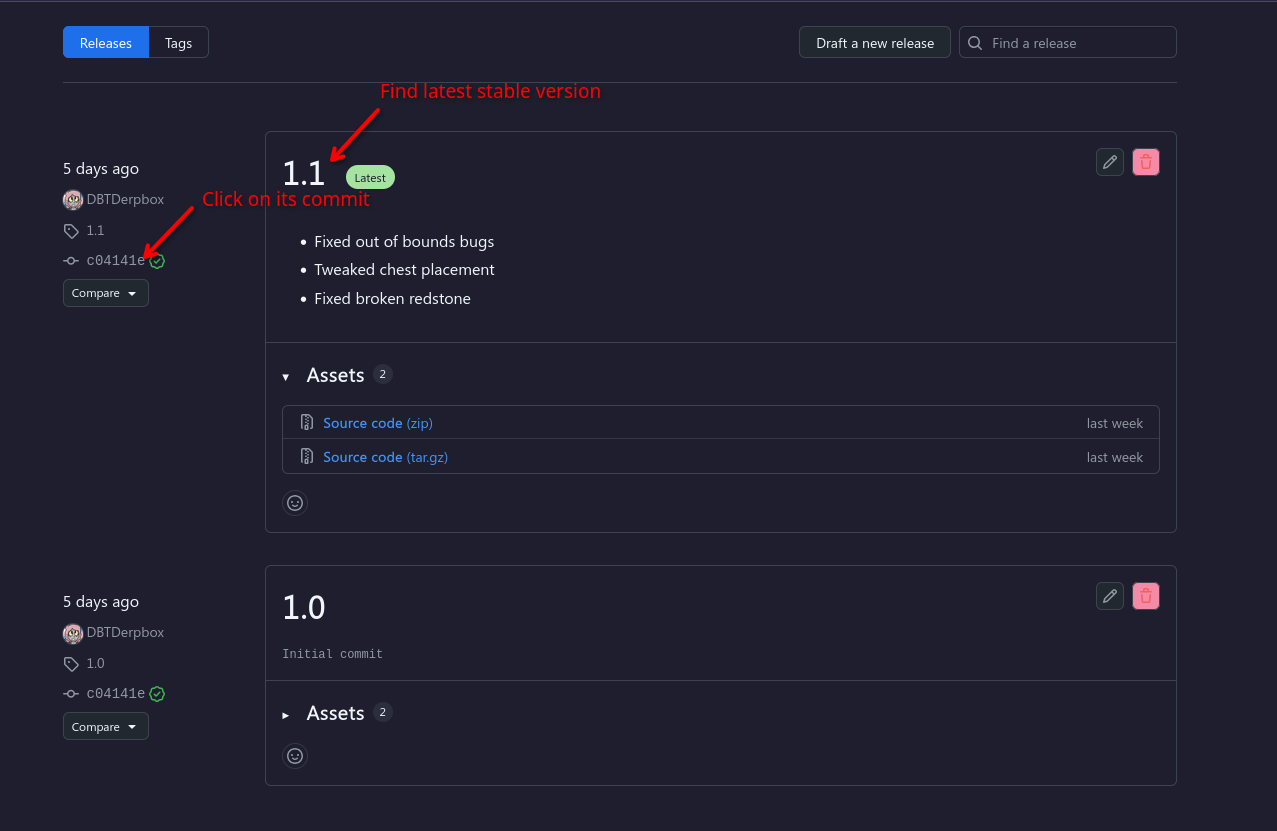
Copy that version’s hash

Set the submodule to the hash you just copied
git fetchgit checkout <hash>
Upload the changes
Go back up to the Verified or Featured folder:
cd ..Add the updated submodule to the commit:
git add repository-nameCommit the changes:
git commit -m "Added <map name> <version name>"Upload the changes:
git push
Update an existing submission
Note
You are expected to have a terminal window open inside the ModTools-Database folder before continuing.
Make sure the repository is up to date:
git checkout mainEnter the submodule:
cd repository-nameSet it to the correct version
Check the releases page of the repository, and find the latest stable version of the mod
Copy that version’s hash
Set the submodule to the hash you just copied
git fetchgit checkout <hash>
Upload the changes
Go back up to the Verified or Featured folder:
cd ..Add the updated submodule to the commit:
git add repository-nameCommit the changes:
git commit -m "Updated <map name> to <version name>"Upload the changes:
git push